前端学习笔记
HTML
[!NOTE]
软件:VS code
浏览器:谷歌浏览器
基础内容:
1
2
3
4
5
6
7
8
9
| "<!DOCTYPE html>": 跨浏览器声明
”<html></html>“:html根元素,包裹整个网站
"<head></head>":头文件模块
“<meat></meat>":嵌套头文件内,声明
”<title></title>“:标题(在网页栏显示)与SEO分数有关
|
示例:
1
2
3
4
5
6
7
8
9
10
11
12
13
14
15
16
17
18
19
20
21
22
23
24
| <!DOCTYPE html>
<html lang="en">
<head>
<meta charset="UTF-8">
<meta name="viewport" content="width=device-width, initial-scale=1.0">
<title>Document</title>
</head>
<body>
</body>
</html>
|
1
2
3
4
5
| "<body></body>":网页显示主体
"<h1>~<h6>": 标题,1-6代表不同等级(大小)
"<p></p>":文本段落
|
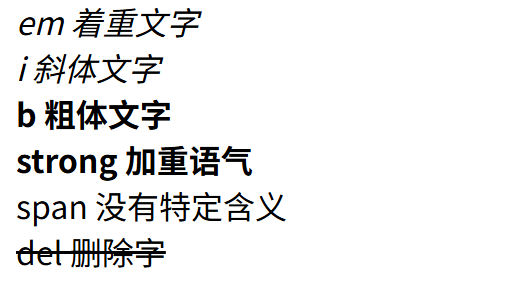
文本标签:
1
2
3
4
5
6
| <em>em 着重文字</em><br \>
<i>i 斜体文字</i><br \>
<b>b 粗体文字</b><br \>
<strong>strong 加重语气</strong><br \>
<span>span 没有特定含义</span><br \>
<del>del 删除字</del>
|
图片:
1
| ”<img src="图片路径" alt="错误时显示文字" title="鼠标点击标题" width="大小" \>“
|
绝对路径:盘符->…
相对路径:同一目录下可忽略相同路径部分
网络链接:直接写图片的网络地址
超链接:
1
| “<a href="链接地址">显示的名称</a>”
|
可以将图片作为链接
有序列表:
1
2
3
4
5
| <ol type="序号形式(1/a/A/i/I)">
<li>苹果</li>
<li>橘子</li>
<li>香蕉</li>
</ol>
|
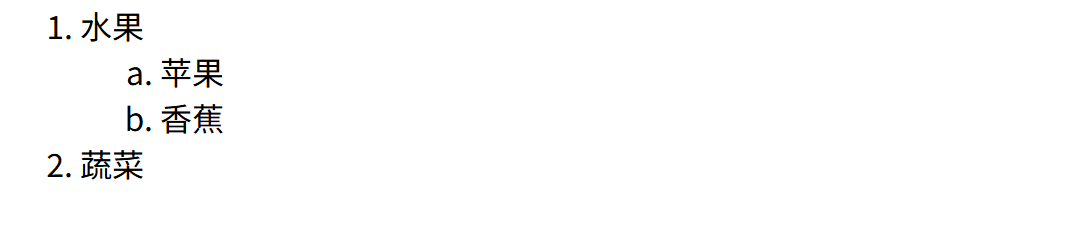
可嵌套:
1
2
3
4
5
6
7
8
9
| </ol>
<ol type="1">
<li>水果</li>
<ol type="a">
<li>苹果</li>
<li>香蕉</li>
</ol>
<li>蔬菜</li>
</ol>
|
无序列表;
1
2
3
4
5
| <ul type="标符样式(默认:实心圆 circle:空心圆 square:实心方块 none: 什么都没有)">
<li>大葱</li>
<li>香菜</li>
<li>西兰花</li>
</ul>
|
可嵌套:
1
2
3
4
5
6
7
8
9
10
11
| <ul>
<li>蔬菜</li>
<ul>
<li>大葱</li>
<li>香菜</li>
</ul>
<li>水果</li>
<ul>
<li>苹果</li>
</ul>
</ul>
|

快捷语法:ul>li*种类个数
回车
表格:
1
2
3
4
5
6
7
8
9
10
11
12
13
14
15
16
17
| <table border="1" width="400px">
<tr>
<td>123</td>
<td>123</td>
<td>123</td>
</tr>
<tr>
<td>123</td>
<td>123</td>
<td>123</td>
</tr>
<tr>
<td>123</td>
<td>123</td>
<td>123</td>
</tr>
</table>
|
border:边框
width:高度
1
2
| 快捷生成:table>tr*5>td*4
回车
|
合并单元格:
水平合并:colspan
垂直合并:rowspan
1
2
3
4
5
6
7
8
9
10
11
12
13
14
15
16
17
18
| <table border="1" width="300px">
<tr>
<td colspan="2">单元格1 单元格2</td>
<td>单元格3</td>
<td>单元格4</td>
</tr>
<tr>
<td>单元格5</td>
<td>单元格6</td>
<td rowspan="2">单元格7<br \>单元格11</td>
<td>单元格8</td>
</tr>
<tr>
<td>单元格9</td>
<td>单元格10</td>
<td>单元格12</td>
</tr>
</table>
|
1
2
3
4
5
| <form action="服务器地址" method="发送方式 get/post">
用户名:<input type="输入内容形式" /><br /> #input:输入
密码:<input type="password" />
<input type="submit" value="注册" /> #submit:提交按钮 vaule:替换
</form>
|

块元素和行内元素:
| 块级元素 |
行内元素 |
| 独占一行(自上而下、垂直排列) |
只占自身大小 |
| 含有width、height属性 |
没有width、height属性 |
| 一般块元素可以包含块元素和行内元素 |
一般行内元素不包含块元素和行内元素 |
常见块元素:
div、form、h1-h6、hr、p、table、ul等等
常见行内元素:
a、b、em、i、span、strong等等
容器:
传统实现形式:div+id(模块类型)
HTML5实现形式:
1
2
3
4
5
6
7
8
9
10
11
12
| <header></header>
# 标题
<nav></nav>
# 导航
<article>
<section></section>
</article>
# 文章
<aside></aside>
# 侧边栏
<footer></footer>>
# 页脚
|
css
语法:
选择器+声明
选择器:改变的html元素
声明:属性+值
属性:样式的配置 属性有对应的值
1
2
3
4
5
6
7
| <style>
# 选择器 h3{
属性:值 #样式
color:red;
font-size: 40px;
}
</style>
|
html引入css:
内联样式:
1
| <p style="color: brown;">我是内联样式</p>
|
内部样式:
1
2
3
4
5
6
7
8
| <head>
...
<style>
p{
color: brown;
font-size: 40px;
}
</style>
|
外部样式:
在HTML文件,头部链接外部css文件
1
| <link rel="stylesheet" href="./pbc.css">
|
1
2
3
4
5
| p{
color: blueviolet;
font-size: 30px;
}
文件名:pbc.css
|
选择器:
全局选择器:优先级最低,只用来初始化界面
标签选择器:直接以标签为单位,修改所有标签的样式
类选择器:简单来说,建立一种自己命名的样式,然后想使用就放在对应的标签后面
1
2
3
4
5
6
7
8
9
10
11
12
| ...
<style>
.content{
color: blueviolet;
font-size: 40px;
}
</style>
...
<p>大家好</p>
<p>我很好</p>
<p class="content">emo了</p>
|
注意:可以同时有多个选择器赋予一个标签,命名只能有英文、数字、-
id选择器:id是唯一的,只能使用一次
优先级排行(从低到高):全局选择器 –> 标签选择器 –> 类选择器 –> id选择器 –> 内联样式
字体属性:
color:规定字体颜色
1
2
3
4
| color:red
color:#ff0000
color:rab(255,0,0)
color:rgba(255,0,0,0) #加入透明度
|
font-size: 文本大小
font-weight:字体粗细
bold 粗 bolder 更粗 lighter 更细 100~900 细致调节粗细(400=默认)
font-style:样式
normal 默认 italic 斜体
font-family:套用字体
背景属性
1
2
3
4
5
6
7
8
9
10
| <style>
.box{
width: 1200px;
height: 1200px;
background-image: url(OIP-C.webp);
background-repeat: no-repeat;
background-size: auto;
background-position: center;
}
</style>
|
weight/height: 容器宽/高
background-image: url(背景图片路径)
background-repeat: repeat -x向水平平铺 repeat -y向垂直平铺 no-repeat不平铺
background-size: 图片自身size
background-position: 图片渲染开始位置
background-color: 背景颜色
文本属性:
1
2
3
4
5
6
7
8
| <style>
h3{
text-align: center;
text-decoration: underline;
text-transform: capitalize;
text-indent: 50px;
}
</style>
|
text-align: 文本开始位置
text-decoration: 添加上/中/下划线
text-transform: 英文单词首字母大写/字母大写/小写
text-indent:文本缩进
表格属性:
1
2
3
4
5
6
7
8
9
10
11
12
13
14
15
| <style>
table,td{
border: 1px solid red;
border-collapse: collapse;
}
td{
text-align: center;
vertical-align: auto;
padding: auto;
background-color: aqua;
color: blue;
}
</style>
|
border: 设置边框样式 “宽度” “样式” “颜色”
border-collapse: 合并表格
text-align: 文本开始位置
vertical-align: 文本对齐位置
padding: 内边框宽度
background-color: 表格背景颜色
color: 文本颜色
关系选择器:
后代选择器:E F{} E里面所有的F都被选择
子代选择器:E>F{} E的直接子元素被选择
相邻兄弟选择器:E+F{} 选择E相邻的相邻的一个元素 (我感觉这个是废物)
兄弟选择器:E~F{} 选择E元素之后所有F元素
css 盒子模型:
所有的HTML元素都相当于一个盒子,css盒子模型就是用来分装html元素的,主要有四个属性:
外边距(margin)边框(border)内边距(padding)实际内容(content)
1
2
3
4
5
6
7
8
9
10
| <style>
div{
width: 300px;
height: 300px;
background-color: antiquewhite;
padding: 10px 20px;
margin: -8px -2px;
}
</style>
|
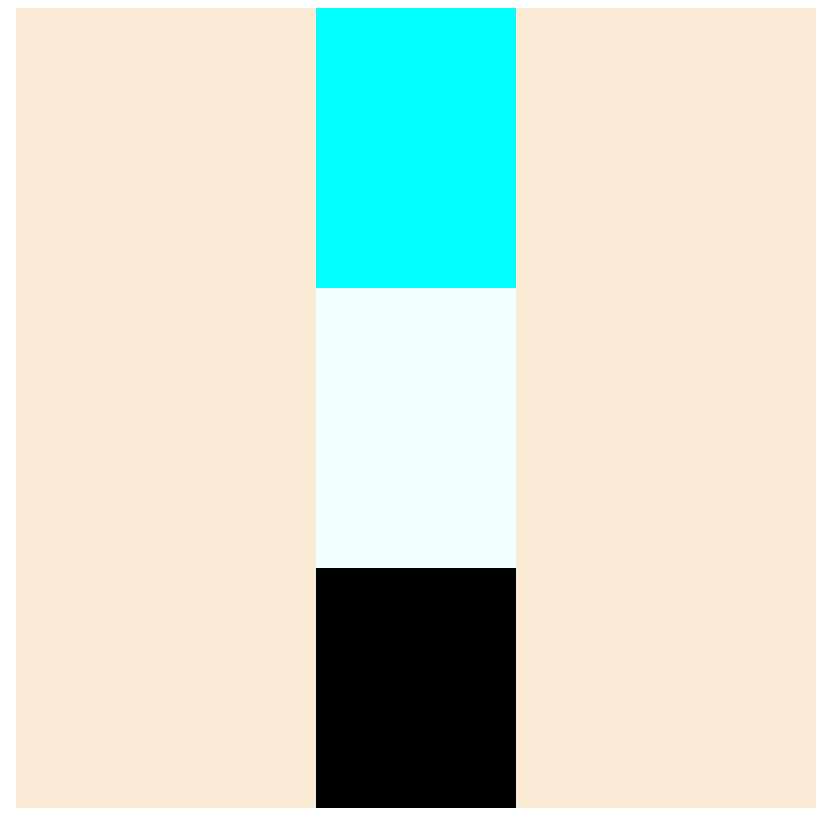
弹性盒模型:
更加灵活的布局方式,更具内容自动进行适配
通过设置display属性的flex值进行弹性适配
1
2
3
4
5
6
7
8
9
10
11
12
13
14
15
16
17
18
19
20
21
22
23
24
25
26
27
28
29
| <style>
.container{
width: 400px;
height: 400px;
background-color: antiquewhite;
display: flex;
flex-direction: column;
justify-content: center;
align-items: center;
}
.box1{
width: 100px;
height: 100px;
background-color: aqua;
flex-grow: 2;
}
.box2{
width: 100px;
height: 100px;
background-color: azure;
flex-grow: 2;
}
.box3{
width: 100px;
height: 100px;
background-color: black;
flex-grow: 1;
}
</style>
|
浮动:
float属性进行控制
left 向左浮动
right 向右浮动